

Azure Virtual Desktop, or AVD, is Microsoft’s cloud-hosted way of giving people a Windows desktop or specific Windows apps that they reach over the internet. It sounds simple, and at the surface it is — a user clicks an icon, a desktop appears. But behind that icon sits an architecture with real decisions: how many environments to run, how to lay out your Azure subscriptions, how to size session hosts, where to store profiles, how to scale, how to manage images, and how to do all of it without inviting a security or cost surprise.
This guide is a complete walk-through of Azure Virtual Desktop architecture, written in plain language for a mixed audience — architects, IT managers, and business stakeholders who want to understand the design choices before signing off on them. It covers the full picture: single versus multiple environments, simple deployments versus landing-zone designs, identity and networking, profile storage with FSLogix, scaling for both pooled and personal pools, DevOps principles for imaging, and the most common mistakes that derail otherwise sensible plans.
What Azure Virtual Desktop actually is
Think of AVD as a service that runs Windows in the cloud and shows it on the device in front of the user. The device can be a laptop, a thin client, a tablet or a phone. What the user sees is either a full Windows desktop or a single app in its own window. Behind the scenes, the Windows session is actually running on a virtual machine — called a session host — sitting in Azure, and a small client app on the user’s device streams the screen back and forth.
Two things make AVD different from older remote-desktop products. First, the parts that broker and route the connection are run by Microsoft, not by you. There are no gateway servers to patch and no brokers to cluster. Second, AVD supports multi-session Windows 11 — a special edition of Windows that lets several users share one virtual machine at the same time. That density is where most of the cost savings come from.
The job of an architect, then, is not to build the connection plumbing. Microsoft already did that. The job is to decide what kinds of desktops to offer, how many environments to run them across, how the supporting pieces (identity, network, storage, images, monitoring) fit together, and how the whole thing will be operated day to day.
Who AVD is for
AVD suits organisations that want centrally managed Windows desktops or apps for staff, contractors or partners; that need to support a mix of devices including non-corporate ones; that have compliance or data-residency reasons to keep data in Azure; or that want the elasticity of cloud capacity rather than a fixed on-premises VDI farm.
The two layers: Microsoft’s plumbing and your house
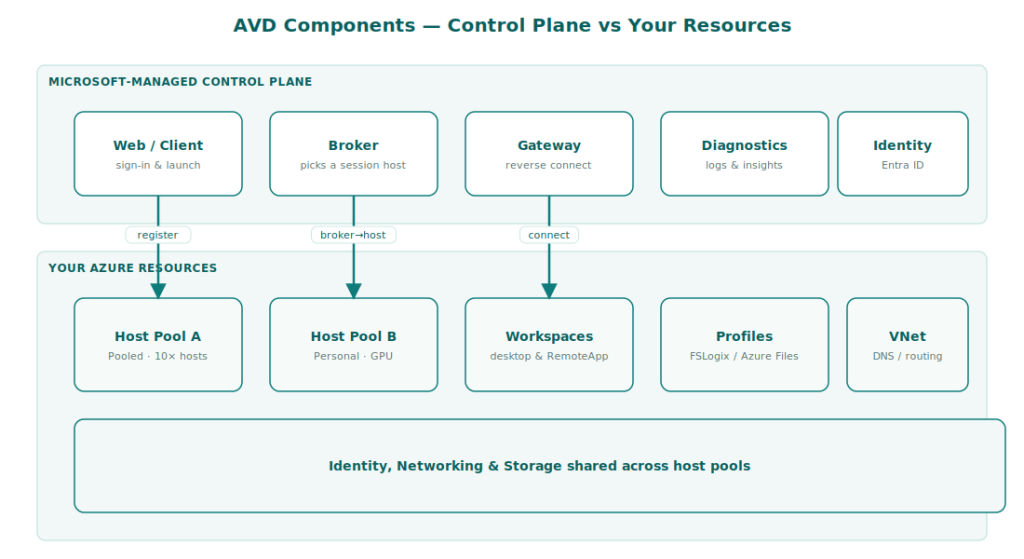
Every conversation about AVD architecture starts with the split between the two layers. Microsoft runs one layer; you run the other. Understanding which is which makes every later decision easier.
The control plane, run entirely by Microsoft, includes the web service users sign into, the broker that picks a session host to connect to, the gateway that carries the connection, the diagnostics service, and the load-balancing logic. You don’t pay for these directly, you don’t patch them, and you don’t scale them. They simply work.
Your resources sit underneath: the session host virtual machines, the storage that holds user profiles and golden images, the virtual network, identity, and the supporting services like monitoring and key vaults. These are normal Azure resources, billed normally, patched by you, scaled by you, and shaped by your design choices.
The architect’s lens
Because the connection plumbing is managed, almost all of your design effort goes into session hosts, profiles, networking and identity. That’s the opposite of on-premises VDI, where the brokers and gateways consumed most of the design and operations attention.
Another important consequence of this split is that AVD’s session hosts never need inbound RDP from the internet. The host reaches outbound to the Microsoft gateway and the connection is bridged through it. This pattern — known as reverse connect — is one of the biggest practical security wins over self-hosted Remote Desktop Services.
The building blocks you’ll work with
A handful of objects show up everywhere in AVD. It’s worth knowing what each one is before we get into the bigger decisions.
| Term | What it is | Why you care |
|---|---|---|
| Workspace | A logical container the user sees in their client, holding one or more application groups. | It’s what users connect to. One workspace per environment is usually plenty. |
| Application group | A publishing object: either a full desktop or a set of RemoteApp programs. | You assign Entra ID groups to application groups to control who gets what. |
| Host pool | A collection of identical session hosts, plus the rules for how users connect to them. | The scaling unit. Decisions like pooled vs personal apply per host pool. |
| Session host | A Windows VM that runs the user’s session. | What you size, image, patch, scale and ultimately pay for. |
| FSLogix profile | The user’s Windows profile stored as a virtual disk on shared storage. | Lets users land on any host (in pooled pools) and still see their settings and data. |
| Image | The reusable Windows installation you build session hosts from. | The smaller and more standardised the image, the easier the platform is to run. |
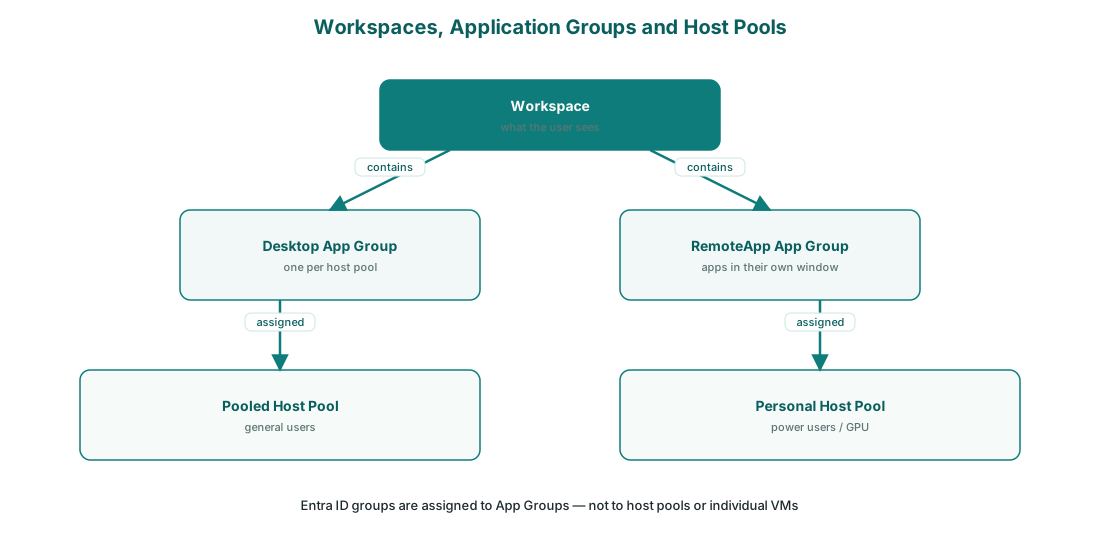
These objects nest cleanly. A user is in an Entra ID group. The group is assigned to an application group. The application group lives in a workspace and is bound to a host pool. The host pool contains the session hosts. That chain — group → app group → host pool → host — is the assignment model, and it’s the spine of AVD access control.
Pooled vs personal host pools — and when to mix them
Every host pool is either pooled or personal. That choice is set at creation and can’t be changed later, so it’s worth getting right.
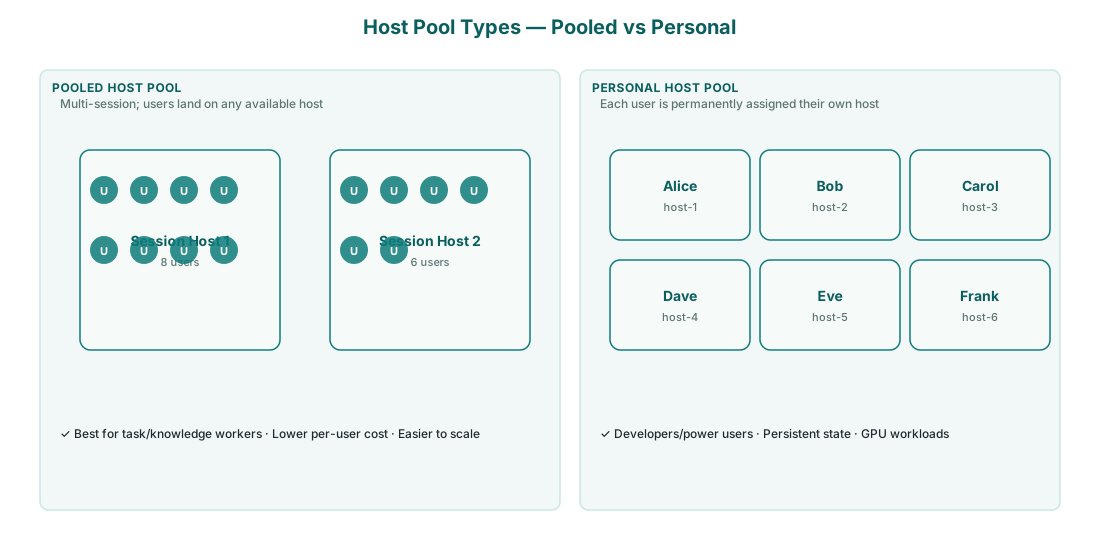
In a pooled host pool, many users share each session host. When a user signs in, the broker sends them to whichever host has spare capacity. Because they could land anywhere, their profile has to follow them — that’s what FSLogix is for. Pooled pools use multi-session Windows so density is high, and they’re where AVD’s biggest cost savings live.
In a personal host pool, each user is permanently assigned to their own session host. There’s no sharing, no FSLogix needed in the same way, and the experience is closer to a Cloud PC. The trade-off is direct: one VM per user means the bill grows in a straight line with headcount.
Most real-world deployments are a mix. A reasonable rule of thumb:
- Pooled for general staff, contact-centre teams, contractors, and anyone using mostly browser and Office workloads.
- Personal for developers, power users, designers, and anyone who installs their own software, keeps state on disk, or runs apps that don’t share a host gracefully.
- Match each persona to an appropriate image and VM size rather than trying to make one host pool serve everyone.
A practical test
If you can’t describe a user group with one sentence — same apps, similar hours, similar tolerance for sharing — they probably belong in their own host pool. Splitting groups early is far cheaper than untangling them later.
One environment or several? Dev, test, and production
A common early question is whether you need separate AVD environments for development, testing and production — or whether one production environment is enough. The honest answer is that it depends on how often you change the platform and how much disruption a bad change would cause.
The single-environment pattern
A single environment is just production. There’s one set of host pools, one image, one set of policies. New configuration is tested by deploying it to a small canary host pool inside the same environment, then rolling it out wider. This is simpler, cheaper, and perfectly fine for smaller organisations or where AVD doesn’t carry critical workloads.
The risk is that an untested change — a new image with a broken driver, a Conditional Access policy that locks users out, a misconfigured scaling plan — hits real users immediately.
The dev/test/prod pattern
Mid-size and larger deployments usually run at least two environments: a production tenant that real users connect to, and a non-production environment for building and validating changes. Many add a third test tier between the two, used for integration testing, security scanning, and user-acceptance pilots before promotion.
| Environment | Who uses it | What it’s for |
|---|---|---|
| Dev | Engineers and architects | Building and proving changes; throwaway hosts and quick rebuilds. |
| Test / UAT | A small group of pilot users | Validating images, scaling plans, and policy changes against real workloads. |
| Production | All real users | The hardened, change-controlled environment with the SLAs that matter. |
Each environment is usually its own Azure subscription — or at least its own resource group with strict RBAC — so blast radius is limited and identities don’t mix. Costs are controlled by keeping non-production small: a couple of session hosts, a single host pool per type, and aggressive shutdown schedules.
How to choose
Start single if your AVD scope is small (a few hundred users, one workload). Move to dev/test/prod the moment AVD becomes critical, when image change is monthly or faster, or when you need to demonstrate change control for audit. The cost of the extra environment is usually less than one painful production rollback.
How environments map to Azure subscriptions
The cleanest pattern is one Azure subscription per environment. That gives you a hard boundary for billing, identity (separate service principals and managed identities for each environment’s automation), and Azure Policy. Production policies can be strict — private endpoints required, specific regions only, encryption mandatory — while dev policies are more permissive.
If separate subscriptions feel heavyweight, a workable compromise is one subscription with tightly scoped resource groups: rg-avd-prod, rg-avd-test, rg-avd-dev. Role assignments and Azure Policy can still be applied at resource-group level, but the separation isn’t as airtight as separate subscriptions.
Promoting changes between environments
With multiple environments, the question becomes how changes move forward. A sensible promotion flow looks like this:
- A change is built in dev — a new image, a Conditional Access rule, an FSLogix setting.
- Once it works in dev, it’s deployed to test with a small group of pilot users (often the IT team plus a handful of friendly volunteers).
- After a defined soak period in test, the change is approved through change control and deployed to production, often to a canary host pool first, then the rest of production.
- The same code or template is used at every stage — only the parameters change.
This is straightforward in principle, but the trap is keeping the environments meaningfully similar. If dev runs on a different VM SKU than production, or test uses Azure Files Standard while production uses Premium, then “it worked in test” won’t mean what it should mean.
Simple deployment vs landing-zone design
There are two broad ways to host AVD inside your wider Azure footprint: a simple deployment, which is mostly self-contained, and an enterprise landing-zone design, which plugs AVD into a structured Azure platform with shared services.
The simple deployment
In a simple deployment, AVD lives in its own resource group inside one subscription. Identity is straight Entra ID. The virtual network is dedicated to AVD, with internet egress through a basic firewall or just NSGs. Storage for FSLogix is one Azure Files share. There’s no separate hub network, no shared monitoring workspace, no enforced policies coming from above.
This works well when AVD is the only significant cloud workload, the user count is modest, and the organisation isn’t already running an Azure platform team. It’s fast to build and easy to reason about.
The landing-zone design
Once AVD sits alongside other Azure workloads, a landing zone is the better shape. The Azure landing-zone model (sometimes called Cloud Adoption Framework, or CAF) is a way of laying out your Azure estate so that platform-level concerns — connectivity, identity, security, governance, monitoring — are managed centrally, and each workload (including AVD) is hosted in its own carefully scoped subscription.
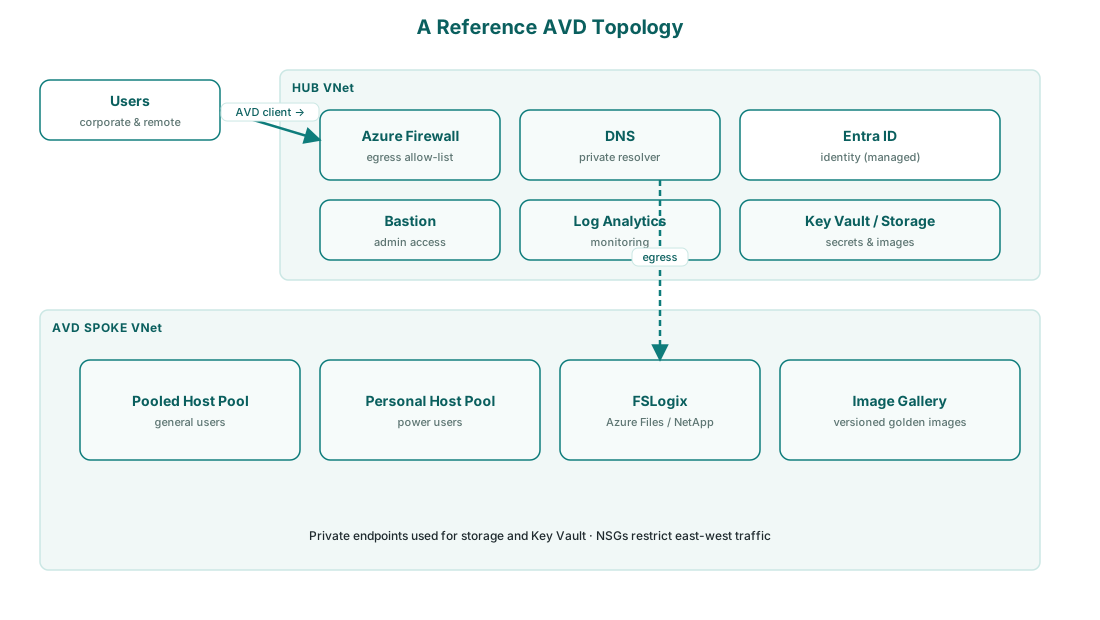
In a landing-zone design, AVD typically looks like this:
- A connectivity hub subscription holds the central VNet, firewall, DNS resolver, and any ExpressRoute or VPN.
- A management subscription holds the central Log Analytics workspace and any platform automation.
- An identity subscription holds Entra Domain Services or domain controllers if you need them.
- The AVD spoke is its own subscription containing the host pools, FSLogix storage, image gallery and supporting resources.
- Azure Policy at the management-group level enforces tagging, allowed regions, encryption settings and so on — so AVD inherits good behaviour by default.
When to invest in landing zones
If you have, or plan to have, more than one significant workload in Azure, build landing zones early. They feel heavier on day one and pay back the rest of the platform’s life. If AVD is your one-and-only cloud workload, a simple deployment is honest — don’t over-engineer for a future that may not happen.
A useful intermediate pattern is the simplified landing zone: a single hub subscription with shared services, plus one spoke subscription per workload. You get most of the benefits — separation, central monitoring, controlled egress — without the full CAF management-group hierarchy.
Identity and networking decisions
Identity and network design carry more long-term consequence than almost anything else in AVD, because they’re hard to change later without rebuilding hosts.
Choosing an identity join model

Session hosts have to be joined to something so users can sign in. There are three models:
- Microsoft Entra ID join is cloud-only. The host is registered with Entra ID and that’s it. Simplest to manage, no on-prem dependency. The right default for greenfield deployments.
- Microsoft Entra hybrid join joins the host to on-premises Active Directory and registers it with Entra ID. Sensible when you still have AD-integrated apps that need Kerberos.
- Active Directory DS join uses AD only. It’s the traditional model, and works, but you give up some cloud-native features. Often a stepping stone, rarely a destination.
The identity model also constrains how FSLogix storage is set up. If your hosts are Entra-joined, Azure Files needs to authenticate against Entra Kerberos or Entra Domain Services. If hosts are AD-joined, Azure Files needs AD authentication. Mixing the two is the single most common cause of “profile won’t mount” incidents on new deployments.
The network shape
AVD networking is shaped by two facts: the control plane is internet-facing and Microsoft-run, and session hosts make outbound connections to it. So you don’t open ports inbound; you control what hosts can reach outbound.
Concretely, every AVD deployment needs:
- A virtual network with at least one subnet for session hosts, sized for the largest host pool plus growth.
- DNS that can resolve your identity (DCs for AD, Entra Connect or private resolver for hybrid).
- Outbound access to the AVD service FQDNs — published by Microsoft as service tags.
- Private endpoints (recommended) to Azure Files, Key Vault and the Compute Gallery to keep traffic off the public internet.
- NSGs to restrict east-west traffic between subnets, particularly between host pools.
For performance, enable RDP Shortpath once your network supports it. RDP Shortpath creates a direct UDP path between client and host where the network allows, dropping latency noticeably for users on good links.
Bandwidth planning
AVD sessions are surprisingly modest on bandwidth — around 1.5 Mbps per concurrent user is a reasonable starting figure for office work, more for video. The real consumer is FSLogix at logon time, when many users mount profile VHDXs at once. Plan storage I/O for the morning spike, not the average.
Profiles and storage: where FSLogix lives
In a pooled host pool, the user could land on any session host — so their profile (documents, settings, OneDrive cache, Outlook OST) can’t live on a specific host. FSLogix solves this by packing the entire profile into a virtual disk (a VHDX file) on shared storage. At sign-in, the file is mounted and grafted onto the local Windows profile; at sign-out, it’s unmounted.
The choice that defines profile performance is the storage tier. Three realistic options:
| Storage option | Strengths | Watch-outs |
|---|---|---|
| Azure Files Premium | SMB-native, Entra/AD authentication, reasonable IOPS, easy to operate. | Per-share IOPS ceiling — plan share count for large estates. |
| Azure NetApp Files | Highest performance and lowest latency at scale. | Cost; capacity-pool minimums; more design work. |
| VM-hosted file server | Total control. | You own the patching, HA and backup. Usually not worth it. |
Start with Azure Files Premium for the first deployment. Move to Azure NetApp Files if morning logon storms or per-share limits become real bottlenecks on larger, denser host pools. Either way, put the storage behind a private endpoint so profile traffic never crosses the public internet.
Two FSLogix settings save the most operational pain in production:
- FlipFlopProfileDirectoryName=1 makes per-user folder names human-readable, so support can find a user’s container without translating SIDs.
- DeleteLocalProfileWhenVHDShouldApply=1 stops stale local profiles from blocking the FSLogix mount when a host has been used by the same person before.
The antivirus trap
Always exclude the FSLogix VHDX files and folders from on-access antivirus scanning. Scanning an actively mounted profile container is one of the most common causes of slow logons — and it’s a self-inflicted wound. Microsoft publishes a definitive exclusion list.
Scaling pooled and personal pools the right way
The most expensive way to run AVD is to leave every session host on, all the time. Autoscale scaling plans let you start and stop hosts on a schedule and on demand. Used well, they typically cut compute cost by half or more without users noticing.
Scaling a pooled host pool
Pooled pools use a scaling plan that divides the day into phases:
- Ramp-up in the morning, before users arrive, so logons are fast.
- Peak during business hours, with enough capacity for full load.
- Ramp-down in the evening, draining hosts as users leave.
- Off-peak overnight and weekends, with a small floor of hosts for late workers.
Two dials matter inside each phase. The capacity threshold (load percentage at which more hosts come on) trades responsiveness against cost. The minimum percentage of hosts on is the safety floor.
During ramp-down, AVD doesn’t terminate active sessions. Hosts go into drain mode (no new sessions), can notify users, wait a configurable grace period, then deallocate when empty. You decide how forcefully to evict stragglers.
Scaling a personal host pool
Personal pools work differently because a user is bound to a specific VM. You can’t simply load-balance a personal pool; you can start the user’s VM when they need it and stop it when they don’t. The scaling plan for personal pools focuses on:
- Start on connect — the VM is deallocated until the user actually opens AVD, at which point it spins up.
- Ramp-down rules — stop VMs that are idle for a defined period, or that haven’t had a connection in N days.
- Always-on exceptions for VMs running background jobs or that need to be reachable for management tooling.
Right-size before you scale
Autoscale decides how many hosts run. Right-sizing decides how efficient each one is. Run a real workload for a week or two, watch the CPU, memory and disk telemetry, and adjust VM SKU and users-per-host together. Over-dense hosts feel slow; under-dense hosts waste money.
Beyond autoscale
A few additional levers worth knowing:
- Reserved Instances or savings plans for the always-on floor of hosts you know you’ll run.
- Ephemeral OS disks on pooled hosts — cheaper, faster to rebuild, and a natural fit for stateless multi-session workloads.
- Image hygiene — smaller, well-maintained images deallocate and start faster, which makes ramp-up snappier.
- Storage tier matching — keep FSLogix on premium storage where logon latency matters, and put image builds and backups on standard.
A concrete cost-impact example
To put scaling in perspective, imagine a pooled host pool serving 500 users on ten D8s_v5 hosts. Without scaling, those hosts run 24×7 — around 1,752 hours a month each, totalling 17,520 host-hours. With a sensible scaling plan that runs ten hosts at peak (40 hours/week), three at off-peak (128 hours/week), and the same on weekends at off-peak rates, you might end up running closer to 4,500 host-hours a month — about a 74 percent reduction on compute. Numbers vary with your shape, but the magnitude tends to hold.
Personal pools save differently
Personal-pool savings come almost entirely from stop-when-idle. If users are on AVD for six hours a day, five days a week, that’s only 30 of the week’s 168 hours — a personal VM that’s only running for the user’s actual session is more than five times cheaper than one left running 24×7.
Golden images and the DevOps mindset
A golden image is the reusable Windows installation that session hosts are built from. It contains the OS, the AVD agent, FSLogix, your core applications, your security agents and your baseline configuration. How you build and manage that image is one of the biggest determinants of whether AVD is easy or painful to operate.
Why hand-built images fail
It starts well. Someone builds a virtual machine, installs everything by hand, captures it as an image. Six months later, no one remembers exactly what’s in it. A year later, it’s drifted from the security baseline, patching has happened on hosts but not on the image, and rebuilding from scratch feels too risky to attempt. The image becomes a fragile artefact that nobody wants to touch.
The DevOps approach: image as code
The healthier model treats the image like any other software artefact — built from code, versioned, tested and released. Three Azure services make this practical:
- Azure VM Image Builder takes a source image (a Marketplace base) and a list of customisation steps, then produces a sealed image.
- Azure Compute Gallery stores numbered versions of the image, with optional replication to other regions.
- A pipeline — Azure DevOps or GitHub Actions — runs the build on a schedule and triggers a controlled rollout.
In code, an image build looks roughly like this:
trigger:
  schedules:
  - cron: '0 4 8 * *'   # second Wednesday of each month, after Patch Tuesday

steps:
  - task: AzureCLI@2
    displayName: Build new AVD image version
    inputs:
      scriptType: pscore
      inlineScript: |
        az image builder run --name avd-win11-multisession --resource-group rg-images
        # publishes a new version to the Compute Gallery on success
Each build produces a new immutable version in the gallery. Host pools reference a specific version, not “latest”, so you can:
- Build the new version every month, automatically patched and tested.
- Validate it on a small canary host pool before pointing production at it.
- Roll back instantly by pointing the host pool back at the previous version.
- See a clear history of who built which image, when, and with what changes.
DevOps doesn’t mean “developers only”
The DevOps principles that matter for AVD images — version control, automation, tested releases, repeatable rollback — apply just as much to infrastructure teams as to application teams. Treating the image as a product with its own lifecycle is what changes AVD operations from heroics to routine.
Application delivery alongside the image
Not every app belongs in the golden image. Apps that change often, or are only used by some users, fit better with MSIX App Attach — a way of packaging applications on a share and mounting them onto session hosts at logon. The image holds the universal core (Office, browsers, security agents); App Attach delivers the long tail. Combining the two keeps the image small and stable, while still giving users a complete app catalogue.
A useful test for whether an app belongs in the image or in App Attach:
| Question | In image | Via App Attach |
|---|---|---|
| Is it used by almost everyone? | Yes | No |
| Does it integrate deeply with the OS (drivers, services)? | Yes | Probably not — packaging may struggle |
| Does it change frequently? | Bad fit — forces image rebuilds | Good fit |
| Does it have its own update mechanism that conflicts with the image? | Bad fit | Good fit |
| Is it only used by a single department? | Wasteful in image | Good fit |
Pipeline maturity, in stages
Few organisations land on a fully automated image pipeline on day one. A pragmatic maturity ladder:
- Stage 0 — Manual. Someone clicks through a VM, captures it. Works but doesn’t scale.
- Stage 1 — Scripted. The customisations are in PowerShell, run by hand against a fresh VM. Reproducible, but humans still trigger it.
- Stage 2 — Automated build. Azure Image Builder runs the customisations on a schedule, outputs to a Compute Gallery. No human in the build loop.
- Stage 3 — Automated release. A pipeline publishes the new image to a canary host pool, runs validation tests, and promotes to production hosts only if those pass.
- Stage 4 — GitOps. Every aspect of the platform (image definition, host pools, policies, scaling plans) is in source control, applied by a pipeline. Drift is detected and remediated automatically.
Stages 2 and 3 are the sweet spot for most organisations. Stage 4 is worth pursuing for large enterprises where AVD is critical and there’s a platform-engineering culture to maintain it.
Security, monitoring and cost — built in, not bolted on
The temptation with any platform is to launch first and harden later. With AVD it pays to build security, monitoring and cost discipline into the design from day one — partly because they’re harder to retrofit, and partly because they’re what turns a working platform into a trustworthy one.
Security in layers
AVD security is best thought of in five layers, each independent but reinforcing:
| Layer | Controls |
|---|---|
| Identity | Conditional Access, multi-factor authentication, Privileged Identity Management for admin roles. |
| Authorization | AVD RBAC roles; group-based application-group assignment; least-privilege everywhere. |
| Network | NSGs, firewall egress allow-list, private endpoints to storage and Key Vault, RDP Shortpath where permitted. |
| Host | Security baseline, Microsoft Defender for Endpoint, attack-surface-reduction rules, application control (AppLocker / WDAC), patched via image pipeline. |
| Data | FSLogix on private storage, encryption at rest and in transit, Microsoft Purview for DLP and sensitivity labelling where governance demands. |
The single most missed control on new deployments is scoping Conditional Access to the AVD sign-in apps specifically. Without that scoping, MFA and device-compliance rules silently don’t apply to AVD.
Monitoring you’ll actually use
Pipe AVD diagnostics, host metrics and sign-in logs into a central Log Analytics workspace, and use AVD Insights as your default dashboard. The signals worth alerting on:
- Sustained high CPU or memory on session hosts — a sizing or scaling problem.
- Profile mount failures — almost always permissions, storage capacity or AV scanning the VHDX.
- Logon time creeping up week on week — storage pressure or image bloat.
- Failed sign-ins outside expected patterns — identity attack or Conditional Access misconfiguration.
Cost — designed in, not discovered
Three habits keep AVD cost predictable:
- Tag everything from day one (environment, cost centre, host pool persona). Untagged resources are unanalysable resources.
- Set budgets and alerts per environment/subscription so a runaway script can’t produce a surprise bill at month-end.
- Review utilisation monthly — right-size hosts, tighten scaling thresholds, and decommission anything that nobody owns.
Build the cost story alongside the platform
The most cost-effective AVD deployments aren’t the ones that chase the cheapest VM SKU — they’re the ones where someone owns the cost dashboard, looks at it monthly, and acts on what they see. Ownership beats optimisation.
Operating model: who runs AVD day to day
Architecture decides what the platform looks like. The operating model decides whether it stays healthy after go-live. AVD isn’t a project you finish; it’s a service you run, and someone needs to own each part of it.
The roles worth being explicit about
Even in small teams, it helps to name who’s responsible for each area. A simple RACI-style split works well:
| Area | Typical owner | What they do |
|---|---|---|
| Platform architecture | Cloud/EUC architect | Owns the design, makes scope decisions, signs off changes. |
| Identity & access | Identity team | Conditional Access, group assignments, MFA policies. |
| Network | Network team | VNet, firewall rules, private endpoints, RDP Shortpath enablement. |
| Host operations | EUC ops team | Image builds, patching cadence, scaling-plan tuning, incident response. |
| Application packaging | App packaging team | MSIX App Attach packaging, validation, releases. |
| Security & compliance | Security team | Baseline assurance, vulnerability management, audit response. |
| Cost & FinOps | FinOps / finance partner | Monthly cost review, right-sizing reviews, budget alerts. |
In smaller organisations one person may cover several of those roles. The point isn’t the structure — it’s that every cell has a name in it. A platform with no clear owner for, say, image builds will quietly stop having them happen.
Change management
AVD invites two distinct change cadences that should be governed differently:
- Routine changes — the monthly image rebuild, scaling-plan tweaks, the addition of new users. These should be standard pre-approved changes once the process is mature.
- Significant changes — a new host pool, a Conditional Access policy update, a new application via App Attach, a network change. These deserve a real change-advisory-board (CAB) review, including a rollback plan.
The image pipeline is the easiest way to harmonise this: routine patching becomes a low-risk automated release, while bigger changes (e.g. a new agent in the image) get explicit approval before being promoted to production.
Incidents and the support model
AVD incidents tend to fall into a few patterns. Service-desk staff should be able to recognise them quickly:
| Symptom | Most likely cause | First thing to check |
|---|---|---|
| “I can’t sign in to AVD” | Conditional Access blocking the device or user | Sign-in logs in Entra ID, then device compliance |
| “Temporary profile at logon” | FSLogix failed to mount the profile container | Storage permissions, stale local profile, AV scanning the VHDX |
| “My session is slow” | Storage latency, host overload, or network | AVD Insights connection quality, then host CPU/RAM |
| “My app is missing” | User not in the assigned group, or App Attach package not staged | Application-group membership, then package status |
| “The whole pool is unavailable” | Image regression or scaling-plan misconfiguration | Recent image version, then scaling-plan logs |
Building this kind of cheat sheet for the service desk — even on one page — dramatically shortens the time to resolution for everyday AVD issues and keeps platform engineers out of tickets they shouldn’t need to see.
Continual service improvement
Every month, take an hour to review four things: how much the platform cost, how often hosts scaled (and whether the thresholds are right), the top five incident causes, and whether the image build is still producing what it should. Most AVD platforms drift slowly, in directions the architect didn’t intend; a monthly review is what catches the drift before it becomes a problem worth a project.
Common mistakes, and a short FAQ
Eight architectural mistakes that derail AVD
- Choosing personal pools when pooled would do. The classic and most expensive mistake.
- Under-spec storage for FSLogix. Profile latency is what users feel first — cheap storage costs you twice in user pain.
- Assigning users individually. Skip Entra ID groups and management collapses as you grow.
- Ignoring image automation. Manual golden images drift and the team forgets how they were built.
- No scaling plan. Running every host 24×7 is the fastest way to a surprise bill.
- Mismatched identity and storage models. Entra-joined hosts with AD-joined storage — or the reverse — produces strange auth failures.
- No private endpoints for storage. FSLogix traffic over public endpoints works, but exposing it is needless.
- Skipping Conditional Access scoped to AVD. MFA silently doesn’t apply if you didn’t scope the policies to the right apps.
Frequently asked questions
Do I need a domain controller in Azure?
Only if you’re using AD-joined hosts. With Entra ID join you can run AVD with no domain controllers at all. Even with AD-joined hosts, modern designs use Entra Domain Services or a small pair of IaaS DCs in the hub rather than extending on-prem AD over the link.
Can users connect from any device, anywhere?
Yes. AVD is internet-facing through the managed gateway, and the client runs on Windows, macOS, iOS, Android and modern browsers. Conditional Access controls who can connect from which devices and locations — you don’t restrict at the network layer, you restrict at the identity layer.
How is licensing handled?
For most organisations, AVD access rights are covered by eligible Microsoft 365 or Windows licences — commonly M365 E3/E5, Business Premium, A3/A5 and similar. Personal pool VMs need Windows licences attached. Always check the current Microsoft AVD licensing page when scoping a deployment, because details change.
How many users per host pool is sensible?
Big enough to load-balance effectively (a host pool with one host defeats the point), small enough to fit one image and one configuration. A common shape is one host pool per persona — general staff, contractors, developers, GPU users — each with its own image, sized for that group’s actual workload.
Should we go straight to a landing zone, or start simple?
Start simple if AVD is your only significant cloud workload. Move to a landing-zone design the moment you have a second workload, or as soon as you can see one coming. The intermediate simplified landing zone — one hub, one spoke per workload, central monitoring — is the right answer for most mid-size organisations.
Azure Virtual Desktop’s architecture rewards a few deliberate decisions up front: host-pool type, environment count, simple-versus-landing-zone, identity model, profile storage, scaling and imaging. Get those right early — and pair them with discipline on security, monitoring and cost — and the rest of the platform tends to look after itself. The technology is the easy part. The planning is where it’s won or lost.
Planning your AVD environment? 🚀
I help Australian organisations design, migrate and optimise Azure Virtual Desktop — from greenfield deployments to landing-zone-aligned enterprise platforms. If you’re scoping a build, let’s talk.
